If you’re serious about PC gaming, it’s well worth getting your head around DirectX and understanding which version suits your setup best. Depending on your hardware and the games you fancy playing, you’ll want to opt for either DirectX 11 or DirectX 12. Let’s walk through the key differences so you can make an informed choice.
What Is DirectX?
Let’s start with the basics. DirectX is a collection of tools developed by Microsoft to improve the performance of video games and certain multimedia applications. In essence, it functions as a driver—a piece of software that helps games and applications communicate more effectively with your PC’s hardware, particularly the graphics card and sound chip.
Its key functions include:
- 3D rendering
- Sound processing
- Input device management
What Is DirectX Used for in Games?
By acting as an intermediary between your game and your PC, DirectX optimises your gaming experience. The good news is you don’t need to actively manage DirectX yourself—it simply works away in the background, speeding up loading times, enhancing graphical quality, and reducing the overall strain on your system.
Why Is DirectX So Important for Gaming?
DirectX has become essential for running a vast number of games. It’s not merely an optimisation tool—it’s fundamental software required for games to function at all. Without DirectX, you simply won’t be able to launch the majority of titles in your Steam library, particularly those with demanding graphics. You need DirectX to play, and you need the right version to get the best performance.
What Happens If You Haven’t Got DirectX Installed?
If DirectX isn’t installed on your system, you’ll likely encounter error messages when trying to launch your games. Games designed to work with DirectX simply won’t start without it, so you’ll need to install it before you can play. Not to worry, though—DirectX typically installs automatically with games from platforms like Steam or the Epic Games Store, and you can also download it separately.
DirectX 11 vs DirectX 12: Key Differences
Understanding how each version handles your hardware
CPU Utilisation
How efficiently each version makes use of your processor’s capabilities—a crucial factor for overall gaming performance.
Practical Example: With a Ryzen 7 9800X3D, you’d go from using one thread to sixteen—and that difference is quite noticeable indeed.
Memory Management
Who’s in charge of managing your system’s memory—and why that matters for game performance.
Why It Matters: Developers often have better insight into a game’s needs than Windows itself, enabling more efficient memory usage and smoother performance.
Level of Abstraction
How much control developers have over your hardware—the lower the abstraction, the more direct the access.
The Trade-Off: Low-level access enables superior performance on well-optimised titles, but places greater responsibility on developers to get things right.
Which Should You Choose?
DirectX 11 offers stability and broad compatibility—ideal for older hardware or pre-2015 games. DirectX 12 delivers maximum performance on modern systems, particularly for titles using ray tracing. When in doubt, let the game’s settings guide you.
Comparison Overview
| Feature | DirectX 11 | DirectX 12 |
| Release Year | 2009 | 2015 |
| CPU Utilisation | Single-threaded | Multi-threaded |
| Memory Management | System-controlled | Developer-controlled |
| Level of Abstraction | High | Low |
| Hardware Access | Indirect | Direct |
| Ray Tracing | Not supported | Supported |
| Primary Advantage | More stable | More powerful |
DirectX 11: Stability and Compatibility
If you’re experiencing issues with a game, it might be worth running it with DirectX 11, as it tends to be more stable—particularly on older PCs. To put it simply, DirectX 11 plays it safe when optimising game performance. You won’t squeeze every last drop of power from your CPU, but you’ll enjoy more reliable performance, especially with older titles.
- Better suited to older or mid-range PCs
- Ray tracing is not supported
- Highly stable with broad compatibility
- Preferred for games released before 2015
DirectX 12: Performance and Modern Features
DirectX 12, on the other hand, is typically the preferred choice for gamers with newer or high-end hardware, as it’s the version that truly extracts maximum performance from your PC. DirectX 12 particularly excels at CPU optimisation by utilising all available cores rather than just one. It’s also designed for the latest graphics cards and supports features like ray tracing, which DirectX 11 cannot handle.
- Makes better use of GPU and, crucially, CPU resources
- Ray tracing supported
- Designed for the latest graphics cards and games
- Particularly powerful on high-end hardware
Which Version Should You Choose?
Although DirectX 12 is Microsoft’s most recent release with the highest performance ceiling, it may not necessarily be the best choice for you. If you’ve got older hardware, play older games, or are experiencing stability issues, DirectX 11 might serve you better—or you may simply have no other option. Consider the following:
- Your Hardware: Still running a PC from 2010? Don’t give developers free rein to push it beyond its capabilities. DirectX 11 is the optimal choice for your machine. If you’ve got a cutting-edge PC, however, DirectX 12 is likely the ideal option for maximum performance.
- The Game: You don’t need DirectX 12 to play Heroes of Might and Magic III. Try to match games with the appropriate DirectX version based on their release date and specific requirements. As a general rule, if your game uses ray tracing, go for DirectX 12; if it predates 2015, stick with DirectX 11.
- Stability vs Performance: DirectX 11 often creates a CPU bottleneck due to limited core utilisation, so if you want to maximise game performance, DirectX 12 is undoubtedly the way forward. That said, if this comes at the cost of stability, you might need to step back and settle for DirectX 11.
| Consideration | DirectX 11 | DirectX 12 |
| Hardware Power | Low to mid-range | High-end |
| Hardware Age | Pre-2015 | Post-2015 |
| Games | Pre-2015 titles | Post-2015 titles |
| Priority | Stability | Performance |
| Ray Tracing | Not supported | Supported |
What Is the DirectX Runtime?
When we talk about DirectX, we’re really referring to an architecture, but this architecture is implemented through a collection of files known as the DirectX Runtime. For DirectX to work on your computer, you need a series of DLL files installed—collectively called the DirectX Runtime. These are typically files like d3d11.dll and d3dx9_43.dll, installed in System32 and SysWOW64.
Why Do Many Games Require the Runtime Even on Updated Systems?
The key lies in the distinction between DirectX integrated into the system and the Runtime. The integrated DirectX contains the core DirectX files, but the Runtime includes specific libraries that aren’t included by default in Windows. This allows the Runtime to be updated more frequently without touching the integrated DirectX, so downloading the latest DirectX Runtime ensures you have all the libraries you need.
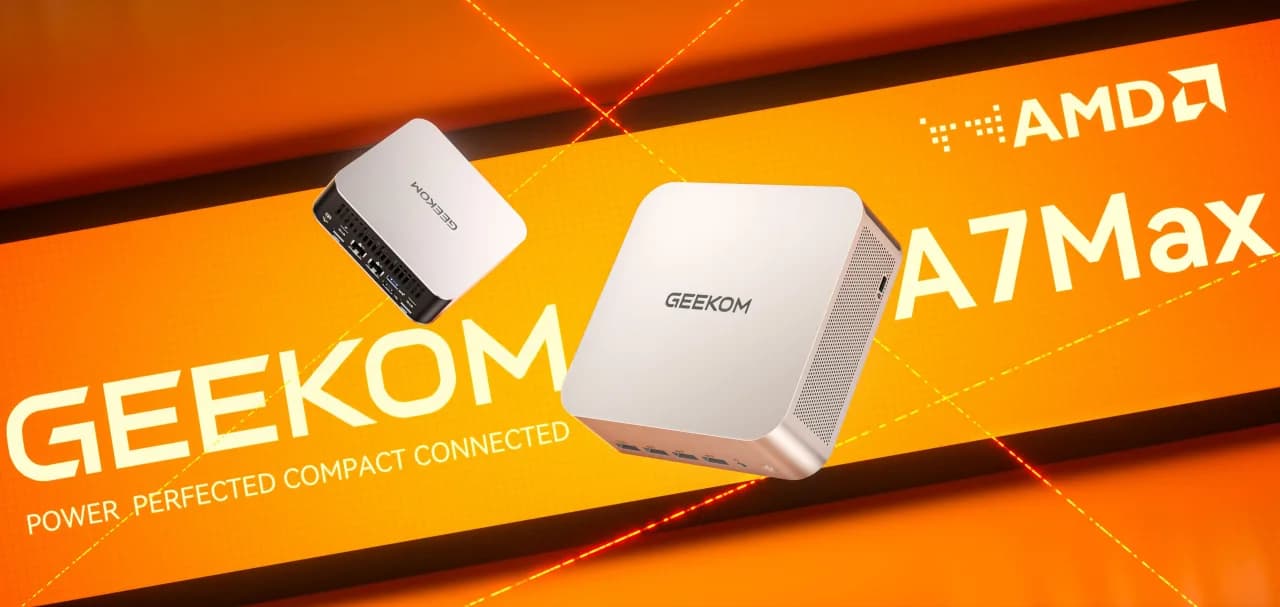
Recommended Hardware for Optimal DirectX Performance: GEEKOM A9 Max Mini PC
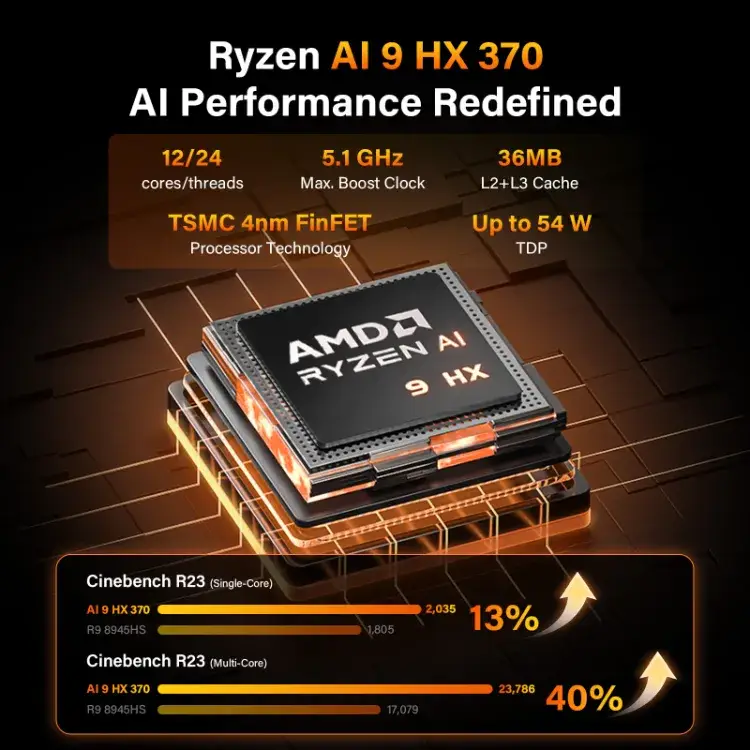
If you want to get the most out of your games and fully exploit DirectX 12’s potential, one of the finest mini PCs you can buy is the GEEKOM A9 Max. This mini PC is optimised for exceptional performance, featuring an AMD Ryzen AI 9 HX 370 processor with 12 cores and 24 threads—all of which can be utilised with DirectX 12—an AMD Radeon 890M GPU, and up to 128 GB of DDR5 RAM.
It’s a mini PC that performs brilliantly for editing tasks with the Adobe suite, design projects with AutoCAD, and, of course, your favourite video games. Best of all, besides being compact with top-tier hardware, you can upgrade its RAM and internal storage. For just £1,299, you’ll have an extraordinarily powerful, future-proof mini PC ready to deliver from day one.
Key Specifications:
- CPU: AMD Ryzen AI 9 HX 370
- GPU: AMD Radeon 890M
- RAM: 32 GB DDR5 at 5600 MT/s, expandable to 128 GB
- Storage: 2 TB NVMe SSD, expandable to 8 TB
- Ports: 4× USB 3.2, 2× HDMI 2.1, 2× USB 4.0 Type-C, 3.5mm jack, SD 4.0 card reader
- Connectivity: Wi-Fi 7, Bluetooth 5.4
How to Download DirectX Safely
When it comes to system-critical files, you’d be wise to steer clear of dodgy download sites or third-party sources. The safest—and most sensible—way to download DirectX is from Microsoft’s official website, or simply let the games you purchase install it for you. This is particularly true if you use the Steam client, which will install the optimal version of DirectX for each game.
If you’d prefer to download from Microsoft’s website, follow these steps:
- Visit the official DirectX website at microsoft.com
- Click the ‘Download’ button
- Run the downloaded file
- Follow the on-screen instructions to complete the installation
How to Check Your Installed DirectX Version
Windows includes a built-in tool for verifying which version of DirectX is installed on your system—the DirectX Diagnostic Tool, which is standard across all versions. Avoid third-party tools and follow this tutorial to check your current version:
- Press Windows + R to open the ‘Run’ dialogue box
- Type ‘dxdiag’ and press Enter or click ‘OK’
- The DirectX Diagnostic Tool will open. You can see your DirectX version listed at the bottom of the panel, along with other system information
This tool also lets you check whether your system supports DirectX 12 for gaming, or whether you’ll need to stick with DirectX 11. Navigate to the ‘Display’ tab and look for feature levels like 12_0 or 12_1 in the ‘Feature Levels’ section. If these appear, your PC is DirectX 12 compatible.
Common DirectX Issues and Quick Fixes
In recent years, DirectX has worked rather well with minimal problems, but you may occasionally encounter the odd hiccup, particularly with DirectX 12. There are various issues and error types you might face, and your specific solution will depend on numerous factors. However, here’s some general guidance for common problems.
The game won’t start due to DirectX
There could be multiple reasons for this, but if it’s an older game, it might be missing a specific DLL file. In this case, you can install the DirectX End-User Runtime directly from Microsoft’s website to restore DLL files from versions like DirectX 9 or DirectX 10, which you probably don’t have installed by default.
DirectX installation errors
This will depend on how you’ve installed DirectX, amongst other things. The simplest solution in these cases is to reinstall it and ensure you restart your PC immediately afterwards. If that doesn’t work, try uninstalling and reinstalling from a different source. For instance, if you installed via Steam, try the Microsoft website instead, and vice versa. As a last resort, try an offline installation.
DirectX performance issues
As mentioned earlier, this tends to occur with DirectX 12 because it’s more flexible and gives developers greater latitude. Often, this can be resolved by running the game with DirectX 11 instead. If that doesn’t sort the problem, you might want to check your graphics card drivers and update them. Remember that DirectX isn’t the only tool your PC needs—sometimes the issue lies elsewhere.
Choose Your Ideal DirectX Version and Enjoy Your Gaming!
As you can see, DirectX is a crucial tool for enjoying your favourite games in all their glory. You simply need to familiarise yourself with its features and, most importantly, understand the key differences between DirectX 11 and DirectX 12. Beyond the generational gap, these two versions represent different approaches: one prioritises stability, the other maximum performance.
Frequently Asked Questions About DirectX
Is DirectX free?
Yes, it always has been—so don’t pay for DirectX! You can download it free of charge from Microsoft’s official website, or simply let Steam or the Epic Games Store handle the installation for you.
Is DirectX only for Windows?
Yes, because it’s technology developed by Microsoft for its own ecosystems. It’s only used on Windows PCs and Xbox consoles.
Can I install DirectX 12 on Windows 10?
DirectX 12 is compatible with both Windows 10 and Windows 11, and both operating systems come with it pre-installed. However, whether you can actually use it depends on your hardware. If your graphics card isn’t compatible, you’ll need to use DirectX 11.
Does DirectX affect FPS in games?
Absolutely! DirectX essentially acts as the go-between for your games and hardware, so it can boost your PC’s performance and help you achieve higher FPS in your gaming sessions. Using DirectX 12, for example, helps you make better use of your CPU’s full potential and can deliver considerably more frames, whilst DirectX 11 may reduce your frame rate because it only utilises a single processor core.